# Bizum
Accept [Bizum](https://bizum.es/) payments on your website or mobile app using the [Hosted Payment Page](https://docs.monei.com/integrations/use-prebuilt-payment-page/.md) or [Bizum Component](https://docs.monei.com/monei-js/reference/.md#bizum-component). No extra configuration is needed for the Hosted Payment Page.
The [Bizum Component](https://docs.monei.com/monei-js/reference/.md#bizum-component) renders a Bizum button on your payment page. When customers select Bizum, an overlay appears where they enter their registered phone number to complete the payment.
## Before you begin[](#before-you-begin "Direct link to Before you begin")
**Bizum is activated automatically — you do not need to do anything.** Once your account is fully approved, Bizum is enabled within **2–3 business days** on average. Please [contact our Support Team](https://support.monei.com/hc/requests/new) if it has not been activated after 7 days.
For automatic activation to succeed, your website must be publicly accessible. If it is password-protected, provide the credentials during onboarding or submit them by [opening a Support Team request](https://support.monei.com/hc/requests/new) — otherwise Bizum will not be activated.
Once activated, Bizum appears in [MONEI Dashboard → Settings → Payment Methods](https://dashboard.monei.com/settings/payment-methods).
To test your integration:
* Use your [test mode](https://docs.monei.com/testing/.md) Account ID and API Key.
* Use the test [phone numbers](https://docs.monei.com/testing/.md#test-bizum-phone-numbers).
* You can check the status of a test payment in your [MONEI Dashboard → Payments](https://dashboard.monei.com/payments) (in test mode).
## Integration[](#integration "Direct link to Integration")
### 1. Create a Payment `Server-side`[](#1-create-a-payment-server-side "Direct link to 1-create-a-payment-server-side")
Create a [Payment](https://docs.monei.com/apis/rest/schemas/payment/.md) on your server with an amount and currency. Always decide how much to charge on the server side, a trusted environment, as opposed to the client. This prevents malicious customers from being able to choose their own prices.
* cURL
* Node.js
* PHP
* Python
POST https\://api.monei.com/v1/payments
```
curl --request POST 'https://api.monei.com/v1/payments' \
--header 'Authorization: YOUR_API_KEY' \
--header 'Content-Type: application/json' \
--data-raw '{
"amount": 110,
"currency": "EUR",
"orderId": "14379133960355",
"description": "Test Shop - #14379133960355",
"customer": {
"email": "email@example.com"
},
"callbackUrl": "https://example.com/checkout/callback"
}'
```
(Replace `YOUR_API_KEY` with your actual MONEI API key)
server.js
```
import {Monei} from '@monei-js/node-sdk';
// Replace YOUR_API_KEY with your actual MONEI API key
const monei = new Monei('YOUR_API_KEY');
const payment = await monei.payments.create({
amount: 110,
currency: 'EUR',
orderId: '14379133960355',
description: 'Test Shop - #14379133960355',
customer: {
email: 'email@example.com'
},
callbackUrl: 'https://example.com/checkout/callback'
});
// Pass payment.id to your client-side
const paymentId = payment.id;
```
server.php
```
payments->create(
new CreatePaymentRequest([
'amount' => 110,
'currency' => 'EUR',
'order_id' => '14379133960355',
'description' => 'Test Shop - #14379133960355',
'customer' => new PaymentCustomer([
'email' => 'email@example.com'
]),
'callback_url' => 'https://example.com/checkout/callback'
])
);
// Pass payment ID to your client-side
$paymentId = $payment->getId();
?>
```
server.py
```
import Monei
from Monei import CreatePaymentRequest, PaymentCustomer
# Replace YOUR_API_KEY with your actual MONEI API key
monei = Monei.MoneiClient(api_key="YOUR_API_KEY")
payment = monei.payments.create(
CreatePaymentRequest(
amount=110,
currency="EUR",
order_id="14379133960355",
description="Test Shop - #14379133960355",
customer=PaymentCustomer(
email="email@example.com"
),
callback_url="https://example.com/checkout/callback"
)
)
# Pass payment ID to your client-side
payment_id = payment.id
```
The following parameters are required:
* **amount** positive integer - Amount intended to be collected by this payment. A positive integer representing how much to charge in the smallest currency unit (e.g., 100 cents to charge 1.00 USD)
* **currency** string - Three-letter [ISO currency code](https://en.wikipedia.org/wiki/ISO_4217), in uppercase. Must be a supported currency.
* **orderId** string - An order ID from your system. A unique identifier that can be used to reconcile the payment with your internal system.
* **callbackUrl** string - The URL to which a payment result should be sent asynchronously.
Check all available [request parameters](https://docs.monei.com/apis/rest/payments-create/.md).
Included in the returned Payment object is a payment `id`, which is used on the client side to securely complete the payment process instead of passing the entire Payment object.
### 2. Add Bizum to your payment page `Client-side`[](#2-add-bizum-to-your-payment-page-client-side "Direct link to 2-add-bizum-to-your-payment-page-client-side")
Include `monei.js` on your checkout page by adding the script tag to the `head` of your HTML file.
checkout.html
```
Checkout
```
Add MONEI [Bizum Component](https://docs.monei.com/monei-js/reference/.md#bizum-component) to your payment page. Create empty DOM node (container) with unique ID in your payment form.
checkout.html
```
```
Initialize Bizum Component
client.js
```
// Create an instance of the Bizum component.
const bizum = monei.Bizum({
paymentId: '{{payment_id}}',
onSubmit(result) {
// result.paymentMethod === 'bizum'
moneiTokenHandler(result.token);
},
onError(error) {
console.log(error);
}
});
// Render an instance of the Bizum component into the `bizum_container` .
bizum.render('#bizum_container');
```
note
Bizum Component is also available as a [React](https://docs.monei.com/monei-js/react/.md), [Vue](https://docs.monei.com/monei-js/vue/.md), [Angular](https://docs.monei.com/monei-js/angular/.md), and [Svelte](https://docs.monei.com/monei-js/svelte/.md) component.
Check the [MONEI JS Reference](https://docs.monei.com/monei-js/reference/.md#bizum-component) for more options.
### 3. Confirm the payment `Client-side`[](#3-confirm-the-payment-client-side "Direct link to 3-confirm-the-payment-client-side")
To complete the payment you need to confirm it using monei.js [confirmPayment](https://docs.monei.com/monei-js/reference/.md#confirmpayment-function) function.
You need to provide a `paymentId` (obtained in [step 1](#1-create-a-payment-server-side)) and `paymentToken` generated with Bizum Component. You can also provide additional parameters like `customer.email`. Check all available [parameters](https://docs.monei.com/apis/rest/payments-confirm/.md).
client.js
```
// Confirm the payment
async function moneiTokenHandler(token) {
try {
const result = await monei.confirmPayment({
paymentId: '{{payment_id}}',
paymentToken: token
});
// At this moment you can show a customer the payment result
// But you should always rely on the result passed to the callback endpoint
// on your server to update the order status
console.log(result);
} catch (error) {
console.error(error);
}
}
```
note
As an alternative process you can submit generated `paymentToken` to your server and then [confirm payment](https://docs.monei.com/apis/rest/payments-confirm/.md) on the server-side.
### 4. Process Webhook Notification `Server-side`[](#4-process-webhook-notification-server-side "Direct link to 4-process-webhook-notification-server-side")
After the client-side interaction and any necessary background processing, MONEI sends the final, authoritative payment status via an asynchronous HTTP POST request to the `callbackUrl` you provided in Step 1.
The request body contains the full [Payment object](https://docs.monei.com/apis/rest/schemas/payment/.md) in JSON format.
This webhook is the **only reliable way** to confirm the definitive payment outcome.
**Crucially, you must:**
1. **Verify the `MONEI-Signature` header** included in the request. This confirms the webhook genuinely came from MONEI. See the [Verify Signatures guide](https://docs.monei.com/guides/verify-signature/.md) for implementation details.
2. **Return a `200 OK` HTTP status code** immediately upon receiving the webhook to acknowledge receipt. Any other status code tells MONEI the notification failed.
If MONEI doesn't receive a `200 OK`, it will retry sending the webhook.
Once the signature is verified, inspect the `status` field in the Payment object (`SUCCEEDED`, `FAILED`, `CANCELED`, etc.) to determine whether to fulfill the order or handle the failure.
## Before you go live[](#before-you-go-live "Direct link to Before you go live")
* Make sure that you are using [live (production) mode](https://docs.monei.com/testing/.md) Account ID and API Key.
* Make sure that you have connected your Bizum business account in [MONEI Dashboard](https://dashboard.monei.com/settings/payment-methods).
## Additional information[](#additional-information "Direct link to Additional information")
### Payment status monitoring[](#payment-status-monitoring "Direct link to Payment status monitoring")
MONEI actively monitors Bizum transaction status to ensure consistency between the payment gateway and processor, preventing discrepancies that could affect merchants or consumers.
### Amount limits[](#amount-limits "Direct link to Amount limits")
Online Bizum transactions have no maximum amount limit. If a transaction fails, it may be due to the issuing bank imposing its own limit or insufficient funds. Unlike peer-to-peer (P2P) limits, there is no monthly cap on online purchases.
### Pre-authentications[](#pre-authentications "Direct link to Pre-authentications")
Bizum supports pre-authentications (`transactionType: AUTH`) to verify the Bizum number belongs to the account holder without holding funds. After successful authentication, you have up to 30 days to capture the payment. Both full and partial captures are supported. If insufficient funds are available at capture time, the transaction will not proceed. No additional SCA is required during capture.
Pre-authentications are available only if the customer's bank supports the RTP (Request to Pay) flow.
### Refunds[](#refunds "Direct link to Refunds")
Bizum transactions can be refunded within 180 days. Refunds may fail if:
* The customer has disconnected their Bizum account.
* The customer has changed the link between their phone number and IBAN.
* The issuing bank is experiencing internal issues with Bizum notifications.
### Subscriptions[](#subscriptions "Direct link to Subscriptions")
You can use Bizum for subscriptions or recurring payments, similar to card-based subscriptions. Set Bizum as the payment method when creating a subscription through the MONEI API.
Key considerations:
* Bank coverage is still being deployed, with 90%+ user coverage targeted. If the customer's bank does not support Bizum subscriptions, the subscription will not work. Confirm this directly with your customer.
* The customer authorizes only the first payment. Subsequent payments are processed automatically via the MONEI subscriptions engine, or you can manage them manually using the recurring payments API.
* Only one recurring payment per month can be made through Bizum, and the subscription amount cannot be changed after the first payment.
### Payment Request[](#payment-request "Direct link to Payment Request")
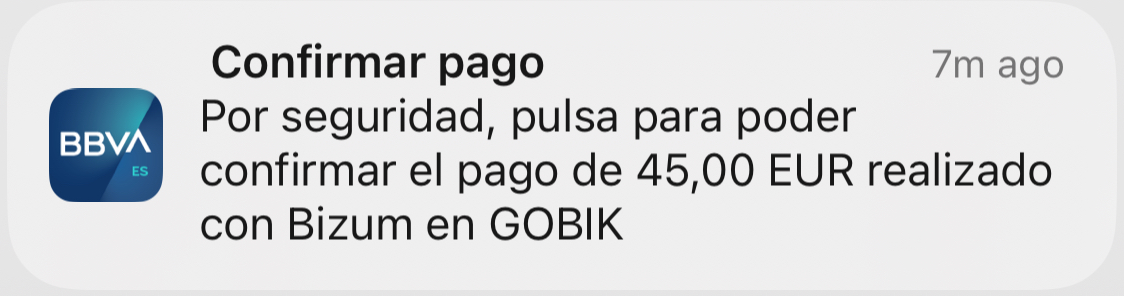
You can [send a payment request](https://docs.monei.com/apis/rest/payments-send-request/.md) directly to the customer's phone. If the phone number is registered with Bizum, the customer receives a push notification to confirm the payment in their banking app. If not, they receive a payment link via WhatsApp. This feature works independently of the UI Component.
Example of a Bizum push notification: